Lesson 2: The terminal as a workshop
Last time you learned to move around. This time: what is a command, actually?
You type ls and something runs. But how does the shell know what ls is, where to find it, whether it is allowed to run, and what should be running it?
Answer those four and you can add commands of your own, which is exactly what you will do by the end.
Warm up
Section titled “Warm up”mkdir -p school/{notes,scratch,projects/first}historycd -The first is the answer to last time’s question. The second is everything you have typed since. The third you have not seen before: run it twice and work out what it does.
For practice between lessons: cmdchallenge.com, one line of bash per puzzle, no account needed.
Everything is text
Section titled “Everything is text”Every command you ran last time printed text. That is not a coincidence, it is the design. A command reads text and writes text, which means any command can be plugged into any other.
The pipe, |, takes what one command printed and hands it to the next instead of to the screen:
ls | wc -lls lists the files, wc -l counts lines, and neither knows the other exists. That is the whole trick, and most of what looks like terminal wizardry is just this repeated.
You can send text to a file instead:
echo "first note" > notes.txt # write, replacing anything thereecho "second note" >> notes.txt # appendcat notes.txtAsking what a command does
Section titled “Asking what a command does”Three ways, in the order worth trying them:
ls --help # short, and usually enoughman ls # the full manual, q to quittldr ls # just the common uses, with examplestldr is not installed yet:
sudo apt install tldrAsking an AI is fine too. Checking the answer against --help before you run it is the habit worth building, and it takes five seconds.
A command is just a file
Section titled “A command is just a file”Nothing you have typed is magic. Every command is a file sitting on your disk:
which lsThat prints a path. ls is a program in /usr/bin, and you have been running files this whole time.
So how does typing ls find /usr/bin/ls? A list of directories called PATH:
echo $PATHThe shell searches those directories, in order, and runs the first match. command not found does not mean the program is missing. It means it is not in one of those directories.
Watch it happen. Install something:
sudo apt install btopwhich btopbtopq to quit. The installer put a file in a directory that was already on your PATH, and that is all “installing” means here.
What makes a file runnable
Section titled “What makes a file runnable”Time to read the rest of that ls -la output properly.
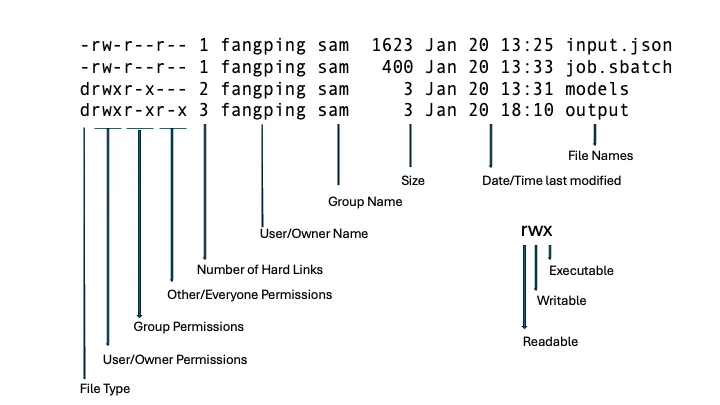
The first column is ten characters. One for the type, then three groups of three:
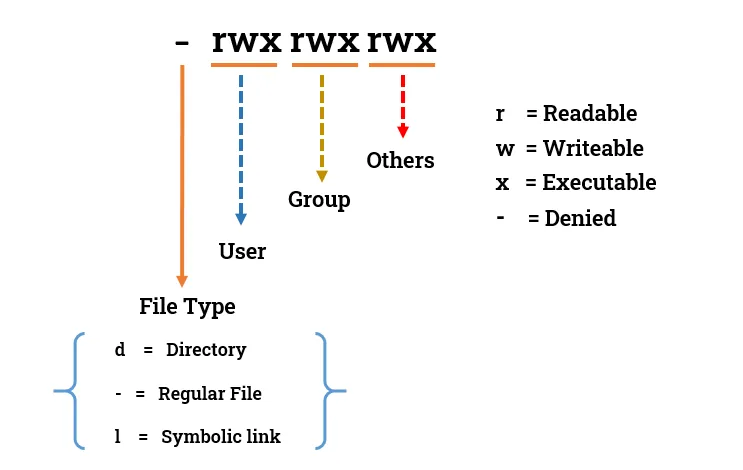
r read, w write, x execute, and - where that permission is absent. The three groups are you, your group, and everyone else.
The same thing is usually written as three digits, because each group is a sum:
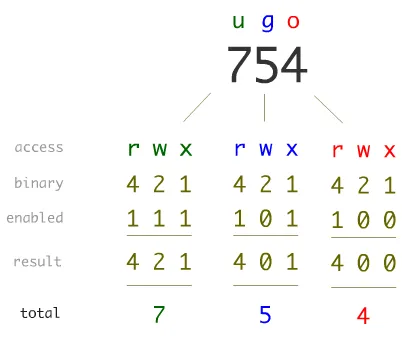
| Mode | Used for |
|---|---|
644 |
ordinary files: you edit, everyone reads |
755 |
directories and programs: everyone can enter or run, only you change |
600 |
private: nobody but you. Keys and secrets |
To change them:
chmod +x script.sh # make it runnablechmod 644 notes.txt # set an exact modechmod u+x gives the execute bit to you alone; chmod +x gives it to everyone. For your own tools either is fine.
What decides how it runs
Section titled “What decides how it runs”The execute bit only says you are allowed to run a file. It says nothing about what language it is in.
Try it:
echo 'print("hello")' > hello.pypython3 hello.py # works: you ran python3, and gave it a file to read./hello.py # Permission deniedchmod +x hello.py./hello.py # still broken, and now the error is differentThat last error comes from bash. The system agreed to run your file, tried, found no instructions about what should run it, and fell back to assuming shell. Add one line at the top:
#!/usr/bin/env python3print("hello")Now ./hello.py works. Two separate things had to be true: chmod +x says you may run this, and the shebang says here is what runs it.
Your task: a tool of your own
Section titled “Your task: a tool of your own”Write a small Python program, put it where the shell can find it, and run it from anywhere by name like any other command.
Make it pw, a password generator:
pw -> a password of a sensible default lengthpw 24 -> 24 characterspw --help -> explains itselfWhat you already know from today: the shebang and chmod +x. Drop the .py from the filename, because a command is just a file and nobody types ls.bin.
Getting the shell to find it
Section titled “Getting the shell to find it”This part is deliberately not solved for you.
The shell only runs what it can find, and echo $PATH shows exactly where it looks. Your tool will not be in any of those directories. So either you put it somewhere already on the list, or you add a directory of your own to it. The second is what people actually do, and the usual name for it is ~/bin.
Hints, in the order you will need them:
PATHis nothing but text: directory names separated by colons. Adding to it means changing that text- Something sets it fresh every time a shell starts. Run
ls -la ~and look for hidden files
The Python part
Section titled “The Python part”argparse, in the standard library. It reads the arguments and gives your tool a real--help, the same one you were typing at other people’s programs an hour ago.- Colour, which is escape codes printed like any other text. Make the output stand out.
Bonus question
Section titled “Bonus question”What happens if you name your tool ls?
Cheat sheet
Section titled “Cheat sheet”Text and pipes
| Command | What it does |
|---|---|
a | b |
send a’s output into b |
> file |
write to a file, replacing it |
>> file |
append to a file |
wc -l |
count lines |
grep word file |
print only the lines containing word |
Chaining commands
Every command quietly reports whether it succeeded or failed. The first two act on that report, which is why sudo apt update && sudo apt upgrade does not try to upgrade from a list that failed to download. The third ignores it.
| Command | What it does |
|---|---|
a && b |
run b only if a succeeded |
a || b |
run b only if a failed |
a ; b |
run b either way |
Finding out
| Command | What it does |
|---|---|
ls --help |
short summary |
man ls |
full manual, q to quit |
tldr ls |
common uses, with examples |
which ls |
which file actually runs |
Permissions
| Command | What it does |
|---|---|
chmod +x file |
make it runnable |
chmod 644 file |
set an exact mode |
stat file |
everything the system knows about a file |
#!/usr/bin/env python3 |
what should run it |
Getting around
| Key | What it does |
|---|---|
Ctrl + R |
search your command history |
Ctrl + L |
clear the screen |
Ctrl + C |
stop what is running |
explorer.exe . |
open this Linux directory in Windows |