Lesson 7: Security
In lesson 5 you learned that a commit has an id which is a hash of its contents, and that this is why history cannot be quietly edited. Today we find out what that means.
This comes before GitHub and before the coding agent, on purpose. You can sign in to the GitHub website with a password like any other site, but when git itself talks to GitHub, a password is not accepted. It wants a cryptographic key. And an agent, when it arrives, will be given your files and your repository to work with. Both of those are easier to follow once you know what a key is.
Warm up
Section titled “Warm up”Did the notes directory happen? Is it there, and does git log show more than one commit in it?
Today’s task uses those notes, so if the directory never quite happened, that is the first ten minutes: a folder, git init, and one note in markdown.
One-way functions
Section titled “One-way functions”Hashes rest on one idea, and keys borrow from the same idea, although they need a good deal more theory than we will cover today. The idea is this: some sums are easy in one direction and hard in the other.
You can see it with something you already know.
Modulo is the remainder after dividing. Python spells it %:
>>> 17 % 52>>> 29 % 54A clock does this without telling you. Five hours after ten is three o’clock, because 15 % 12 is 3.
Notice what has happened. Three o’clock could have come from 3, or 15, or 27, or 39. The rest of the information is gone, and there is no way to work out which one it was.
Now make it harder. Raise a number to a power first, then take the remainder:
>>> 7 ** 5 % 1311That direction takes no time. The other one is the problem: you are given 11, you know the 7 and the 13, and you want the power. There is no quick way. You try each one until it matches.
for n in range(1, 13): print(n, 7 ** n % 13)Twelve tries here. Trying every possibility until one works is called brute force. There is no cleverness in it: you start at the first option and keep going. It always works in the end, so the only question that matters is how long the end takes.
Real systems use numbers with dozens or hundreds of digits, so the forward sum still takes a fraction of a second, and brute force stops being practical.
That is what one way means: not impossible, just slow enough that nobody bothers.
Challenge, two minutes. Run that loop and find which power gives 11. Then picture the same loop with a six hundred digit number.
Hashes get there a different way, by mixing bits rather than doing arithmetic. Key pairs use sums close to the one you just ran, with a lot more theory on top.
Hash functions
Section titled “Hash functions”A hash turns any amount of data into a short string of a fixed length. A fingerprint for a file.
echo -n "hello" | sha256sumecho -n "hellp" | sha256sumOne letter changed, and the two results look nothing alike. That is intended.
It does that by mixing the bits of your file around, again and again, so that changing anything at all changes about half of the answer. Here is one round of the mixing:
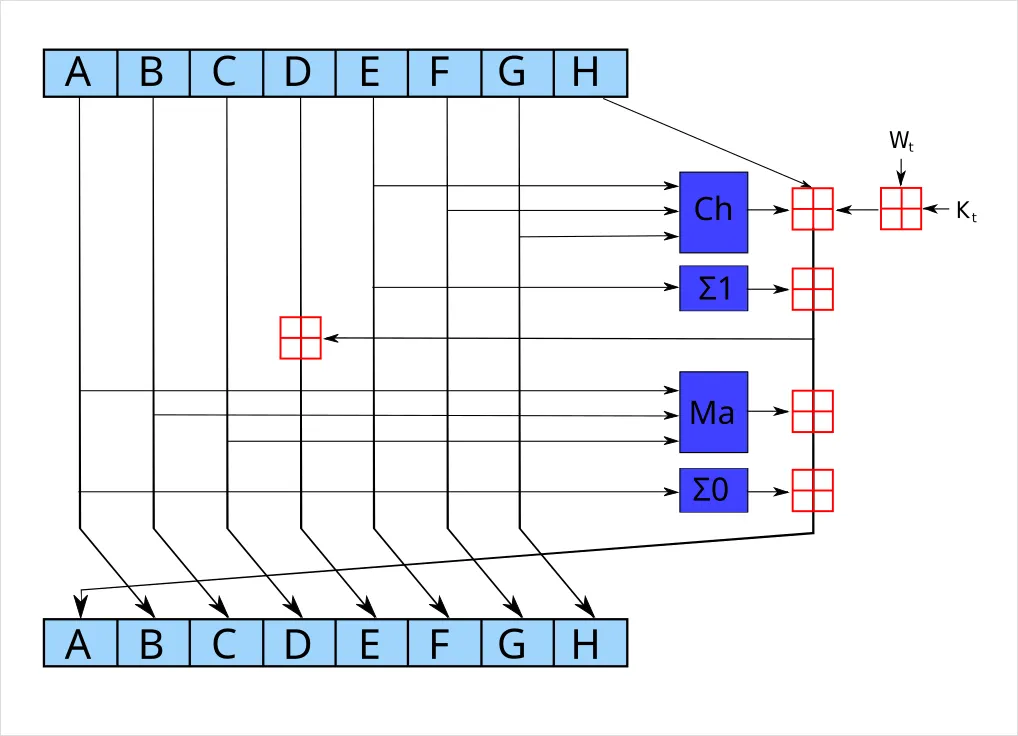
You are not meant to follow that, and you never have to. sha256 does sixty-four of those rounds for every 64 bytes of your file. It is worth one look for a different reason: there is nothing magical inside. It is addition and shifting bits sideways, done a great many times. If you ever want the detail, Wikipedia has it.
Three things are true of a good hash, and they are worth holding on to:
- Same input, same output. Always, on any machine, forever
- Any input, same length. Hash one letter or a four gigabyte film, you get 64 characters either way
- It only goes one way. From the file you can get the hash in no time. From the hash you cannot get the file back
Try it on a real file:
sha256sum notes.mdChallenge, two minutes. Hash a file. Change one character in vim, save, and hash it again. Then change it back and hash a third time.
That third hash is the interesting one. Put the file back exactly as it was, and the hash comes back exactly as it was.
There is more than one of these. Try the older one on the same file:
md5sum notes.mdsha256sum notes.mdBoth commands end in sum, and that is not decoration. A hash used to check that a file has not changed is called a checksum, and sites that host something worth downloading often print one next to the link. You download the file, run sha256sum on it, and compare the two strings. If they match, you have the file they meant to give you.
md5 is shorter, 32 characters against 64, and it is broken. People can now build two different files that come out with the same md5 on purpose. It is still fine for spotting a download that got corrupted on the way, and no use anywhere somebody might be trying to fool you. Use sha256.
There is a whole family of them, and they all came with your machine:
| Command | Characters out | |
|---|---|---|
md5sum |
32 | old, broken |
sha1sum |
40 | old, broken |
sha256sum |
64 | the one to use |
sha512sum |
128 | the bigger sibling |
b2sum |
128 | BLAKE2, newer and quicker |
Challenge, two minutes. Run all five on the same file. Same file every time, five different answers, and each one always the same length.
sha1 broke the same way md5 did. In 2017 Google built two different PDF files with the same sha1 on purpose and published both, to make the point.
Longer is not automatically safer. sha512 is not twice as good as sha256, it is a different size, and sha256 is enough for anything you are going to do. BLAKE2 and its newer relative BLAKE3 are worth knowing about mostly because they are fast.
So will sha256 break one day as well? Nobody knows, and that is exactly why SHA-3 already exists. It was chosen in 2012 after a public competition and became a standard in 2015, and the point of it is not that it is bigger. It is built on a completely different idea inside, so whatever might one day break SHA-2 would probably leave SHA-3 untouched. A spare, made in advance.
It never got a sum command of its own, but your machine has it anyway:
openssl dgst -sha3-256 notes.mdsha256sum notes.mdSame file, same 64 characters, completely different answer. Not two sizes of one thing, but two unrelated designs doing the same job.
Passwords
Section titled “Passwords”A server should never keep your password. It keeps the hash. You log in, it hashes what you typed and compares. If somebody steals the database they get hashes, not passwords.
That works up to a point:
echo -n "password123" | sha256sumThat gives the same answer on every machine that will ever exist. So somebody can hash the ten million most common passwords once and then look a stolen hash up in the list. No brute force needed, because the work was done in advance. The list has a name: a rainbow table.
The fix is a salt: a scrap of random text added to each password before hashing, different for every user. Same password, different hash, and the prepared list is worth nothing.
It also answers the question left hanging in lesson 4. Does swapping an s for a $ help? Barely, because every cracking tool has tried that trick for twenty years. What works is length and randomness together. Length on its own is not enough, because a long password built out of real words is still sitting in somebody’s list. pw 16 wins not because it is long, but because nothing chose it except chance.
Public key cryptography
Section titled “Public key cryptography”A hash goes one way. A key pair works differently. Its proper name is asymmetric cryptography, which means only that the two halves are not the same.
You make two files at once. One you can give to anybody. One you keep to yourself.
ssh-keygen -t ed25519 -C "your machine name"It makes two files:
| File | What it is |
|---|---|
~/.ssh/id_ed25519 |
the private half. Never leaves your machine |
~/.ssh/id_ed25519.pub |
the public half. Safe to paste anywhere |
cat ~/.ssh/id_ed25519.pubOne line, and it is safe to share. Putting it on a public website would cost you nothing.
The pair works like this: a server keeps your public half. When you connect, it gives you a small puzzle that only the private half can answer. You answer it, the server is satisfied, and your private key never travelled anywhere.
No password crosses the network, because there is no password.
chmod 600 ~/.ssh/id_ed25519That pair is yours now, and we will need it in the next lessons.
Commands of the day
Section titled “Commands of the day”Five of them arrived quietly today and you have used them all: md5sum, sha1sum, sha256sum, sha512sum and b2sum. Here is a sixth, and it is the one most likely to mislead you later.
base64 rewrites data using only letters, digits and two other characters. It exists so that things which are not text can travel through places that only accept text.
echo -n "hello" | base64echo -n "aGVsbG8=" | base64 -dIt goes both ways, in one command, with no key and no password. So it is not encryption and it hides nothing. People mistake it for protection quite often. If you ever see something described as secured when it is only base64, it is not secured.
You already have one on your machine. That long string in the middle of your public key is base64, and you can read what is underneath it:
sudo apt install xxd
cut -d' ' -f2 ~/.ssh/id_ed25519.pub | base64 -d | xxd
xxd shows a file as raw bytes on the left and readable characters on the right. It is worth keeping.
The first thing it prints is ssh-ed25519 in plain readable text, then 32 bytes which are the key itself. Nothing was hidden. It was written in a different alphabet, that is all.
Task: fingerprint your notes
Section titled “Task: fingerprint your notes”Go back to the notes directory you started last time.
sha256sum *.md > checksums.txtOpen checksums.txt and look at it. One line per note: a hash, then the name of the file it came from.
Now change something in one of your notes, save it, and ask for the files to be checked against what you wrote down:
sha256sum -c checksums.txtIt hashes each file again and compares. You get a list of OK and exactly one FAILED, naming the file you touched.
That is a small tool, built from two commands, and it does something real: it tells you whether a set of files is still exactly as you left them. Backup programs work this way. So do package managers. The obvious use for you is a download: record the checksum when you get the file, check it later.
If you are thinking that git already does this for you, you are right. You do not need to keep checksums.txt. But now you know what git is doing when it tells you a file has changed.
Bonus: search your notes, in Python
Section titled “Bonus: search your notes, in Python”Your notes are a directory of markdown files, and that is going to stay true. What is missing is a way to look through them.
You could do this with grep in one line. Write it in Python instead, because a program you wrote can grow later and a one-line pipe cannot.
What it should do:
- Take a word from the command line
- Look in every
.mdfile in your notes directory - Print every line that contains the word, with the file name and the line number in front of it
- Ignore capital letters, so that
SSHfindsssh - Say how many lines matched
Two things are worth looking up rather than guessing: pathlib, which is how Python talks about files and folders, and enumerate, which counts as it goes so you can print line numbers.
Here is the empty shape of it, so you do not have to start at a blank file:
#!/usr/bin/env python3"""Find a word in my notes."""
import sysfrom pathlib import Path
NOTES = Path.home() / "notes"   # point this at your own directory

def search(word):    # your code goes here    pass

def main():    # your code goes here    pass

if __name__ == "__main__":    main()
That last pair of lines is new, and you will see it in almost every Python program you ever read. It means “only run main() if this file was started directly”. Import this file from another one later and the functions come across without anything running. Two lines now, and it saves you an afternoon eventually.
Working, it should look something like this:
$ ./find.py ssh2026-07-30-server.md:3: Logged in with ssh for the first time.2026-08-05-keys.md:4: Made mine with ssh-keygen -t ed25519.
2 lines matched.
$ ./find.py banana
0 lines matched.
Then make it yours. Easiest first:
- Say something useful instead of crashing when you forget to type a word
- Print the total at the top instead of the bottom
- Match the file name as well as the lines inside it
- Take two words and only show lines containing both
- Colour the word that matched